Follow this guide to learn how to use your gift card to purchase or renew a subscription on the dashboard. This process allows you to apply your gift card credit during checkout. Follow these steps to successfully use your gift card.
Step 1: Select a Plan for Gift Card
Navigate to the plan selection page on the dashboard. Choose your desired plan (e.g., 1 Month + 1 Device for $14.99/month, 3 Months for $19.99, or 6 Months for $34.99) to associate with your gift card purchase. Click "Select" to proceed with purchasing the gift card for that plan.
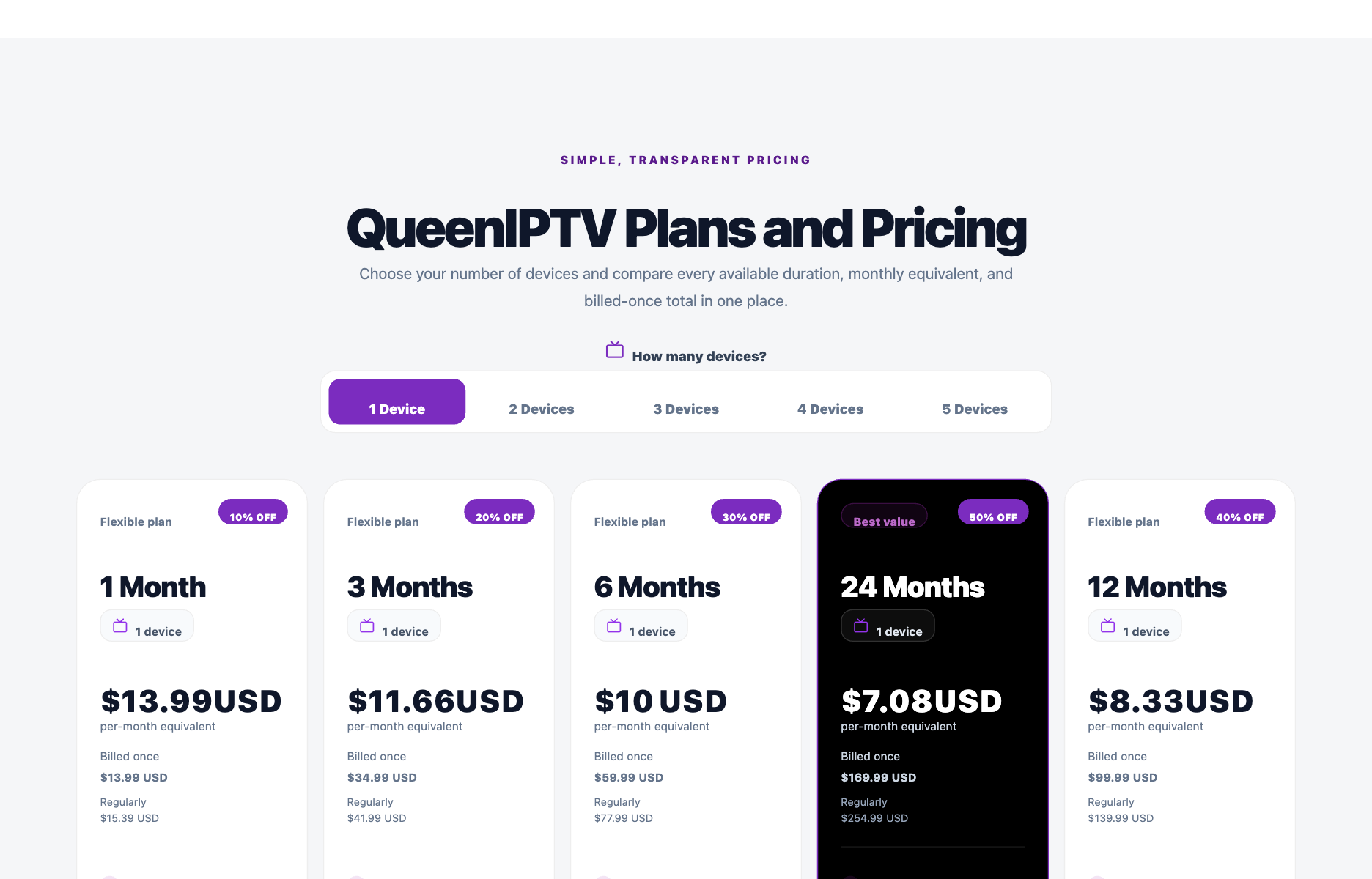
Step 2: Receive Email Containing Gift Card Code
Check your inbox for a confirmation email from QueenIPTV Shop after purchasing the gift card. The email will contain your gift card code (e.g., YESB4CT30) and details about the associated plan (e.g., 1 Month + 1 Device, original price $11.44, paid price $10.00 after a 10% discount).
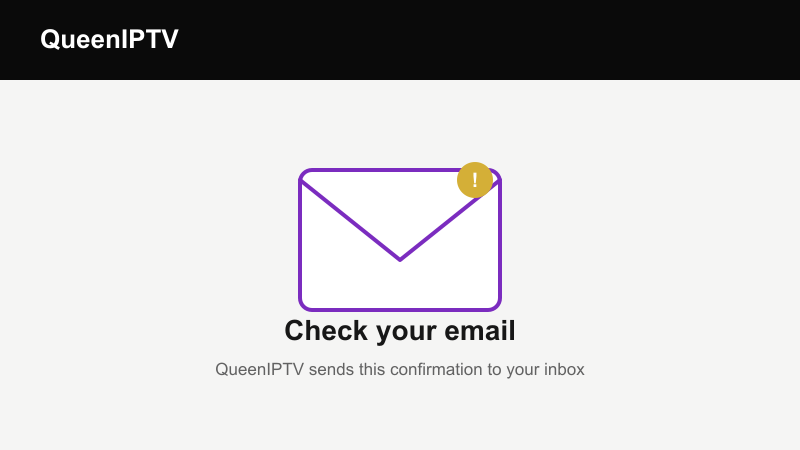
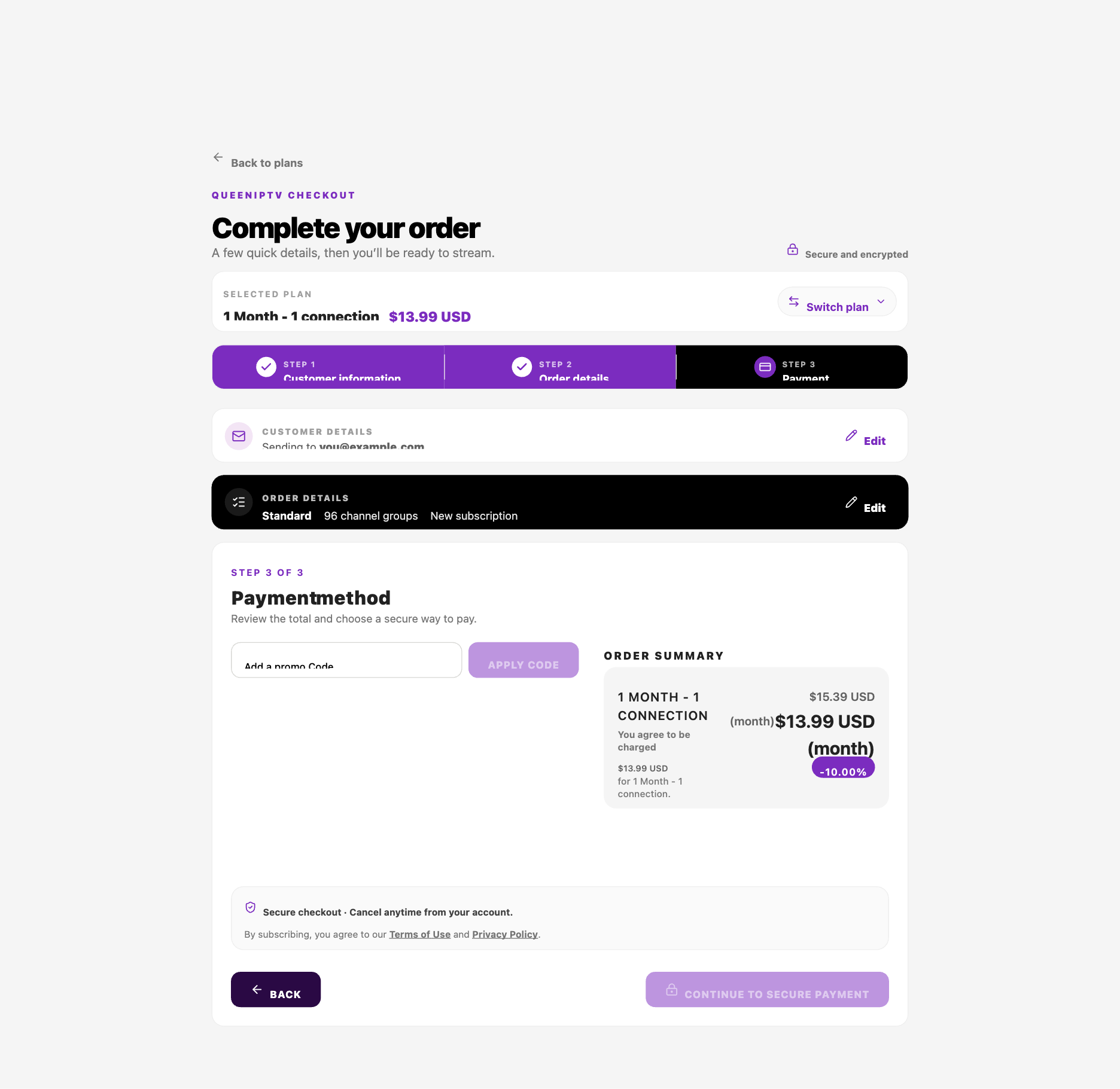
Step 3: Use the Gift Card as a Promo Code
Return to the checkout page by starting a new order. Enter your gift card code (e.g., YESB4CT30) in the "Promo" field and click "Apply." The total will update to $0 if the gift card covers the cost (e.g., $9.99 for 1 Month + 1 Device), and you can then click "Checkout" to proceed.
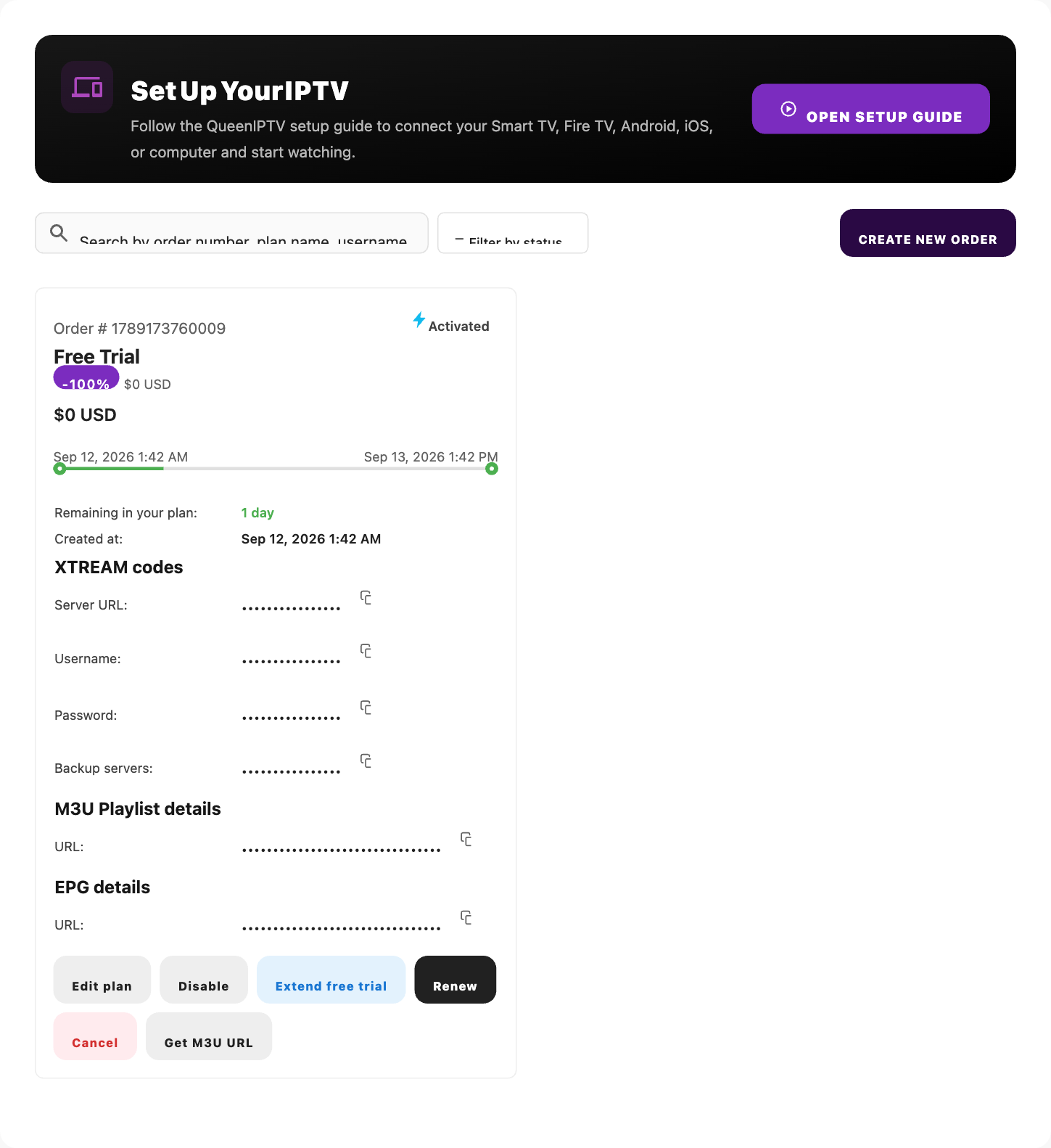
Step 4: Confirm Order Creation with the Gift Card
After completing the checkout, return to the "Orders Management" section on the dashboard. Verify that the new order appears with a status of "Activated," indicating the gift card has been successfully applied to your subscription.
Tips for a Smooth Experience
- Ensure your gift card code is entered correctly before applying.
- Contact support if you don’t receive the gift card email within a few minutes.
- Check the dashboard to confirm the gift card has been applied to your order.